Automating Anomaly Detection in AWS CloudTrail Logs
In this guide, we explore the automation of anomaly detection in AWS CloudTrail logs using an AWS Lambda function, Amazon EventBridge, and AWS Bedrock. This solution provides near real-time security monitoring by analysing CloudTrail logs and notifying a Slack channel if any potentially malicious activity is detected.
Problem Statement
Monitoring AWS CloudTrail logs manually for suspicious activities is inefficient and error-prone. Security teams must continuously analyse logs for unauthorised access, privilege escalations, or other security threats.
To address this, the implemented solution automates security monitoring by:
- Event-driven execution: AWS Lambda is triggered by an EventBridge rule when specific CloudTrail events occur.
- AI-based analysis: The Lambda function sends event details to Claude AI for security evaluation.
- Real-time notifications: The analysis result is posted in a Slack channel, colour-coded based on the risk assessment.
This automation enhances AWS security posture by providing quick insights into potential threats with minimal manual intervention.
Key Features
EventBridge Rule Configuration
- The EventBridge rule listens to API calls recorded in CloudTrail from various AWS services, such as IAM, EC2, S3, and RDS.
- It triggers the Lambda function when any of the specified API calls (e.g.,
CreateUser,DeleteRole,PutBucketPolicy) are detected.
Lambda Function for Security Analysis
- Receives CloudTrail logs as input from EventBridge.
- Sends the structured event data to Bedrock API for threat analysis.
- Categorises the event as Dangerous, Safe, or Uncertain based on Bedrock’s response.
- Sends a notification to a designated Slack channel with a colour-coded risk assessment.
AI-Powered Threat Analysis
- Uses Claude AI to analyse CloudTrail logs and determine if an event is potentially malicious.
- Provides a simple and concise risk assessment.
Slack Integration for Alerts
The Lambda function posts analysis results to a Slack channel.
- Messages are colour-coded according to Bedrock’s analysis:
- Red (#c41616) for dangerous events.
- Green (#25b04a) for safe events.
- Yellow (#ede326) for uncertain cases.
Notes About the Solution
Architecture & Execution
- AWS Lambda executes the analysis function on demand.
- Amazon EventBridge acts as the event source, triggering the Lambda function when specific CloudTrail events occur.
- Claude AI processes the logs and determines potential threats.
- Slack API delivers security alerts to a designated channel.
Prerequisites
- An AWS account with permissions to configure EventBridge rules, deploy Lambda functions, and access CloudTrail logs.
- A Slack workspace and bot token for sending notifications.
- Claude AI integration via Amazon Bedrock.
Error Handling & Security
- The Lambda function includes logging for troubleshooting and debugging.
- Sensitive information (e.g., API keys) should not be hardcoded; environment variables or AWS Secrets Manager should be used.
- AWS IAM policies should restrict access to necessary resources only.
Limitations
- The solution depends on Claude AI’s accuracy in analysing CloudTrail logs.
- It requires internet connectivity for Bedrock API calls and Slack notifications.
- The EventBridge rule must be updated manually if new event types need monitoring.
Installation Steps
To deploy this solution, follow these steps:
1. Configure EventBridge Rule
- Create an EventBridge rule to capture relevant CloudTrail events.
- Specify services and API actions to monitor.
- Set Lambda as the target.
- This is an example “event pattern” you can use as a starting point:
{
  "source": ["aws.iam", "aws.ec2", "aws.s3", "aws.rds", "aws.signin", "aws.kms", "aws.secretsmanager", "aws.config", "aws.cloudtrail", "aws.budgets"],
  "detail-type": ["AWS API Call via CloudTrail"],
  "detail": {
    "eventName": ["CreateUser", "DeleteUser", "AttachUserPolicy", "DetachUserPolicy", "CreateAccessKey", "DeleteAccessKey", "UpdateAccessKey", "CreateRole", "DeleteRole", "AttachRolePolicy", "DetachRolePolicy", "AuthorizeSecurityGroupIngress", "AuthorizeSecurityGroupEgress", "RunInstances", "TerminateInstances", "DeleteNetworkAcl", "PutBucketAcl", "DeleteBucketAcl", "PutBucketPolicy", "DeleteBucketPolicy", "DeleteObject", "DeleteDBInstance", "ModifyDBInstance", "RebootDBInstance", "DeleteDBSnapshot", "DeleteSubnet", "DeleteKey", "DeleteSecret", "DeleteConfigRule", "DeleteTrail", "StopLogging", "DeleteBudget", "ConsoleLogin", "CreateDBCluster", "DeleteDBCluster", "ModifyDBCluster", "FailoverDBCluster"]
  }
}
2. Configure EventBridge Rule
- Enable Bedrock in Your Account:
Log in to the AWS Management Console and navigate to the Amazon Bedrock console. Enable access to the foundation model(s) you plan to use (e.g., Anthropic Claude, AI21 Jurassic, or Amazon Titan). - Set Model Access:
In the Bedrock console, configure model access by selecting the desired models. This step ensures that your account is permitted to invoke the chosen foundation models. - Note the Model ID:
Once the model is enabled, note its Model ID (e.g., “anthropic.claude-3-sonnet-20240229-v1:0”). This ID is required for API calls from your Lambda function. - Update IAM Permissions:
Ensure that the Lambda execution role includes the necessary permissions to call Bedrock APIs (e.g., bedrock:InvokeModel). - Initialize the Bedrock Client in Your Lambda Code:
Use boto3 to create a Bedrock client with the correct region. For example:
import boto3
bedrock_client = boto3.client('bedrock-runtime', region_name='eu-west-2')
3. Deploy the Lambda Function
- Write the Lambda function in Python.
- Use the AWS SDK (
boto3) to interact with Amazon Bedrock and Slack API. - Upload the function to AWS Lambda.
import json
import boto3
import urllib3
import logging
from datetime import datetime, timedelta

logger = logging.getLogger()
logger.setLevel(logging.INFO)

def lambda_handler(event, context):
    analysis_result= None
    slack_bot_token = "[Enter Slack Bot Token Here]"
    channel_id = "[Enter Slack Channel ID Here]"

    logger.info(f"Received event: {json.dumps(event)}")

    event_details_text = f"""
    Received event: {json.dumps(event)}")
    """

    logger.info(f"Event details: {event_details_text}")

    bedrock_client = boto3.client('bedrock-runtime', region_name='[Enter Your Region Name Here]')  # Amazon Bedrock endpoint

    prompt = f"""
    You are a security expert reviewing AWS CloudTrail logs. Please analyze the following CloudTrail event and determine if there is any suspicious activity or potential threat. I will give you the event details as JSON so please analyze according to that.

    Event Details:
    {event_details_text}

    Please before making your analyze give me necessary informations from the json file.

    Based on the event details, please analyze whether this action represents a normal activity or a potential security threat. Provide a clear response in plain text.

    Please keep it very simple, short and easy to read.

    In the end choose one of these according to your conclusion and finish your text with it. If the log seems dangerous to you choose dangerous. If you think it is safe choose Safe. If you are not sure choose I am not sure. "Type: Dangerous", "Type: Safe", "Type: I am not sure".
    """

    messages = [
        {
            "role": "user",
            "content": prompt
        }
    ]

    logger.info(f"Sending prompt to Claude: {prompt}")
    # Enter the model ID that you like
    try:
        response = bedrock_client.invoke_model(
            modelId="anthropic.claude-3-sonnet-20240229-v1:0",
            body=json.dumps({
                "messages": messages,
                "anthropic_version": "bedrock-2023-05-31",
                "max_tokens": 2000
            }),
            contentType="application/json",
            accept="application/json"
        )

        response_body = response['body'].read().decode('utf-8')
        response_json = json.loads(response_body)

        logger.info(f"Response from Bedrock: {json.dumps(response_json, indent=2)}")

        analysis_result=response_json["content"][0]["text"]
        if not analysis_result:
            logger.warning("No analysis result found from Bedrock response.")
            analysis_result = "No analysis result returned."

        logger.info(f"Analysis result: {analysis_result}")

    except Exception as e:
        logger.error(f"Error invoking Bedrock or processing event: {e}")
        return {
            'statusCode': 500,
            'body': json.dumps(f'Failed to process the event: {str(e)}')
        }

    color= None
    if "Type: Dangerous" in analysis_result:
        color="#c41616"
    elif "Type: Safe" in analysis_result:
        color="#25b04a"
    elif "Type: I am not sure" in analysis_result:
        color="#ede326"
    else:
        color="#000000"

    message = {
        "channel": channel_id,
        "attachments": [
            {
                "text": f"""
                Threat Analysis: {analysis_result}
                """,
                "color": color
            }
        ]
    }

    logger.info(f"Sending message to Slack: {json.dumps(message, indent=2)}")

    http = urllib3.PoolManager()

    slack_api_url = "https://slack.com/api/chat.postMessage"

    headers = {
        "Content-Type": "application/json",
        "Authorization": f"Bearer {slack_bot_token}"
    }

    try:
        response = http.request(
            "POST",
            slack_api_url,
            body=json.dumps(message),
            headers=headers
        )
        # Log the response from Slack
        logger.info(f"Slack response: {response.status}")
        logger.info(f"Response body: {response.data.decode('utf-8')}")
    except Exception as e:
        logger.error(f"Error sending message to Slack: {e}")
        return {
            'statusCode': 500,
            'body': json.dumps('Failed to send message to Slack.')
        }

    return {
        'statusCode': 200,
        'body': json.dumps('Message sent to Slack successfully!')
    }
3. Set Up Slack Integration
- Create a Slack bot and obtain a bot token.
- Check this document for creating the slack bot: Slack Bot
- Configure the Lambda function to send notifications to a designated Slack channel.
4. Test and Monitor
- Generate test events using AWS CLI or the AWS Management Console.
- Verify that logs are analysed correctly and alerts are sent to Slack.
- Monitor CloudWatch logs for debugging and improvements.
- You can use this dummy CloudTrail log below for testing:
{
  "version": "0",
  "id": "12345678-1234-1234-1234-123456789012",
  "detail-type": "AWS API Call via CloudTrail",
  "source": "aws.ec2",
  "account": "123456789012",
  "time": "2024-11-08T12:34:56Z",
  "region": "us-east-1",
  "resources": [],
  "detail": {
    "eventVersion": "1.05",
    "userIdentity": {
      "type": "IAMUser",
      "principalId": "AIDAEXAMPLE",
      "arn": "arn:aws:iam::123456789012:user/ExampleUser",
      "accountId": "123456789012",
      "accessKeyId": "AKIAEXAMPLE",
      "userName": "ExampleUser"
    },
    "eventTime": "2024-11-08T12:34:56Z",
    "eventSource": "ec2.amazonaws.com",
    "eventName": "CreateKeyPair",
    "awsRegion": "us-east-1",
    "sourceIPAddress": "192.168.1.1",
    "userAgent": "aws-sdk-java/1.11.1000 Linux/4.14.123-112.109.amzn2.x86_64",
    "requestParameters": {
      "keyName": "MyNewKeyPair"
    },
    "responseElements": {
      "keyPair": {
        "keyName": "MyNewKeyPair",
        "keyFingerprint": "abcd1234"
      }
    },
    "requestID": "1234abcd-1234-1234-1234-123456789012",
    "eventID": "abcd1234-5678-1234-1234-123456789012",
    "readOnly": false,
    "resources": [],
    "eventType": "AwsApiCall",
    "managementEvent": true
  }
}
5. Result
As a result you should see something like the screenshot below:
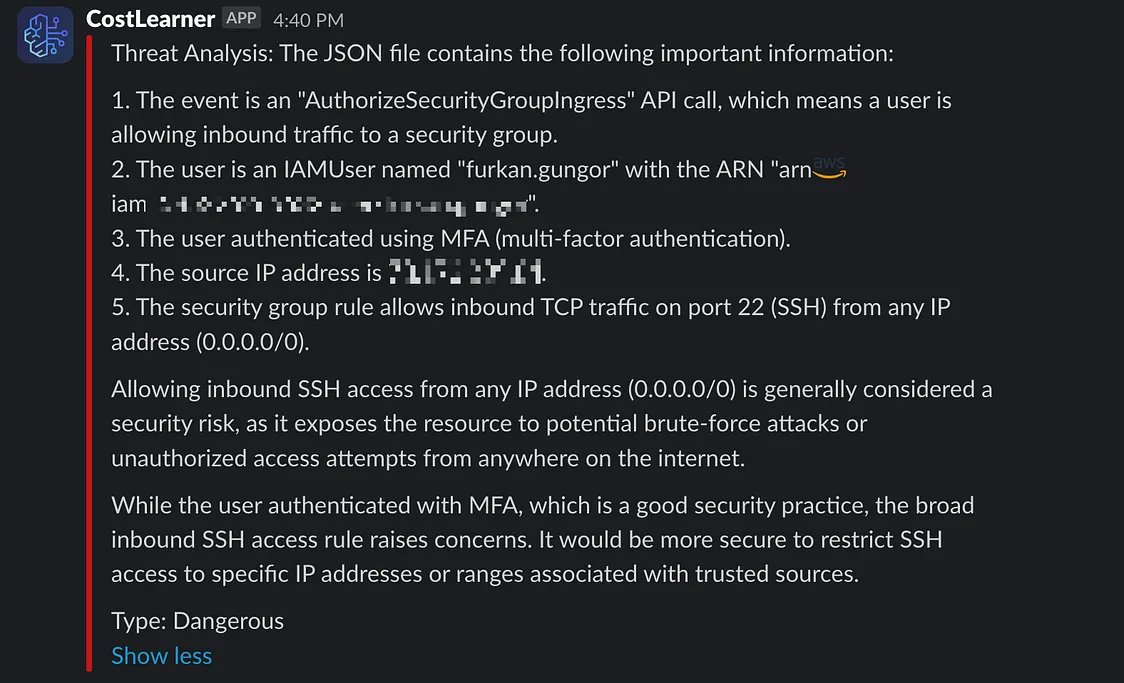
By implementing this solution, you have achieved near real-time, AI-powered security monitoring for AWS CloudTrail logs, enabling rapid threat detection. 🎉🎉🎉
Further Information
For more details, consult the following AWS documentation: